Seeing Sound — Building a Spectral Equalizer from Scratch
May 16, 2026 · Luciano Muratore
I have to confess that as much as I am fascinated about audio, I am also fascinated by the fact that it can be reinterpreted in other ways. It may be my mathematical mind playing in the background of my head.
Anyways, I wanted to reinterpret sound as an image with the intention of editing it by modifying the picture. A two-dimensional image where one axis is time and the other is frequency. Bright where there is energy, dark where there is silence.
Once sound is viewed that way, something remarkable is realized: you can edit it like an image. Paint over a region. Make it darker. Make it brighter. And when you convert the picture back into a waveform and press play, what you hear has changed — precisely, surgically, in exactly the region you painted.
This article is about building a tool that does exactly that.
What the App Does
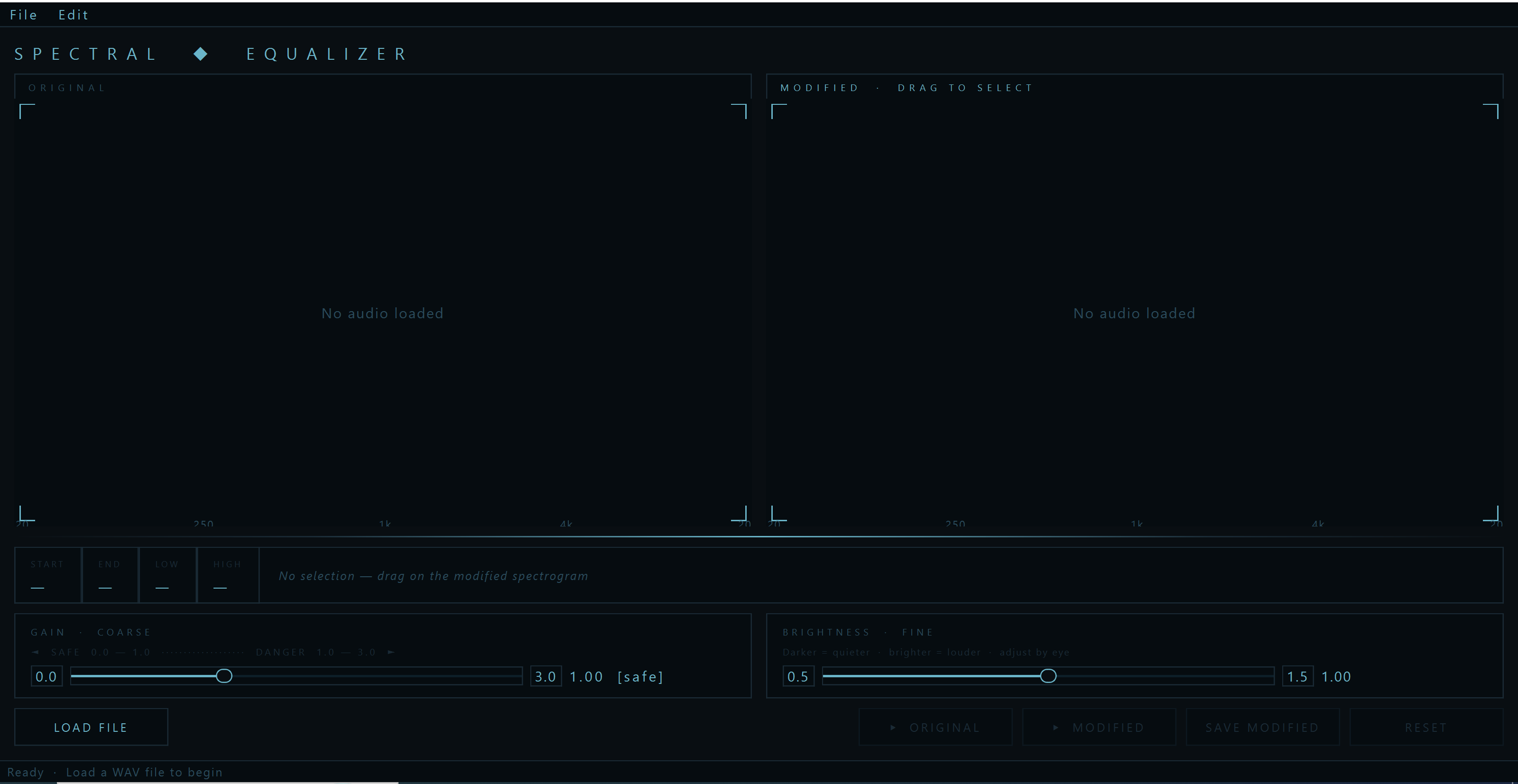
The Spectral Equalizer loads a WAV file and displays it as two spectrograms side by side — Original on the left, Modified on the right. The original never changes. It is your reference.
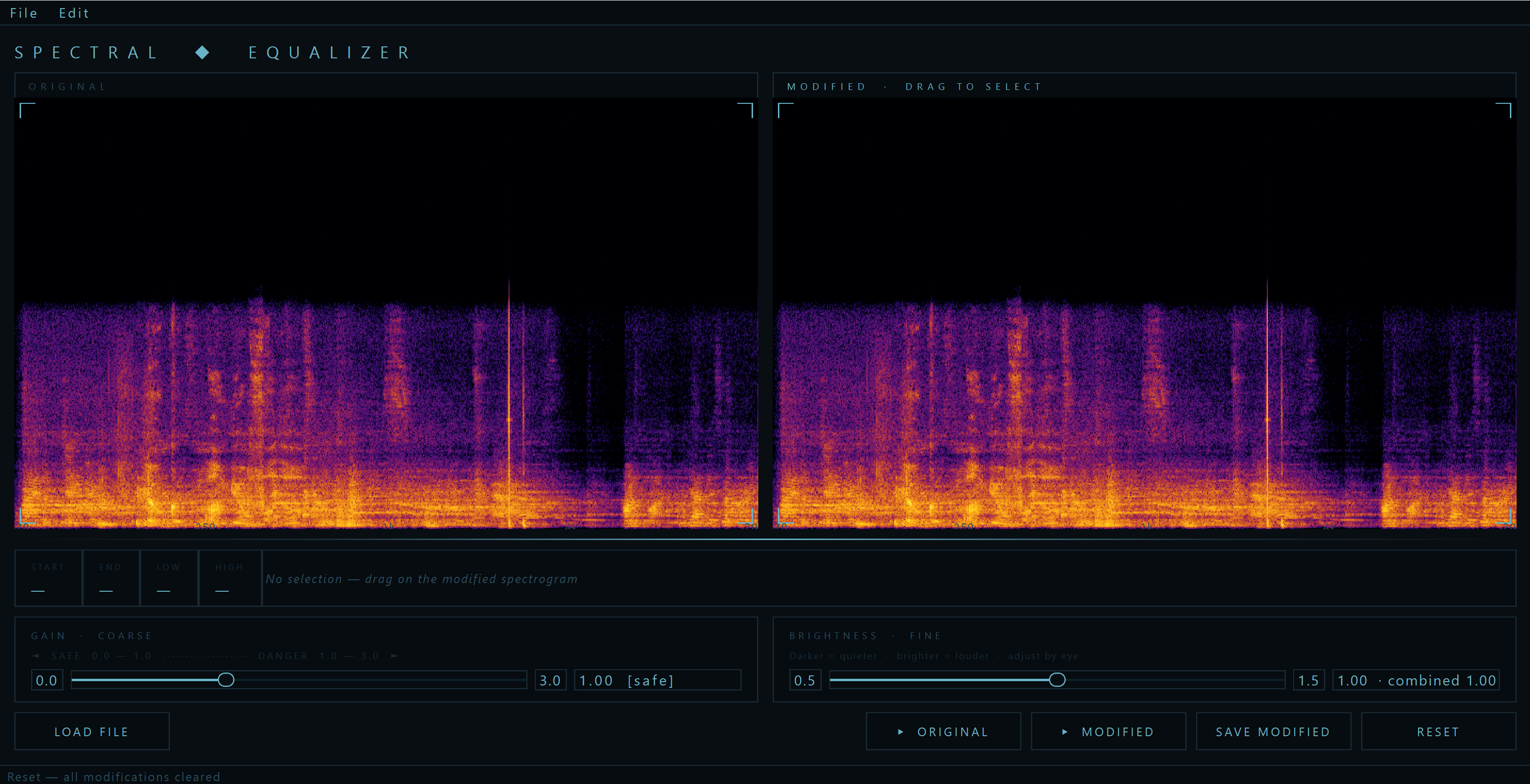
On the Modified spectrogram, you draw a selection rectangle by clicking and dragging. This defines a region in time and frequency — say, from 0.5 seconds to 2.0 seconds, between 200 Hz and 4000 Hz. You then use two sliders to modify the energy in that region:
The Gain slider is coarse control — a multiplier from 0.0 (complete silence) to 3.0 (triple the energy). Setting it to 0.0 blacks out the selected region in the spectrogram and removes that sound from the audio entirely.
The Brightness slider is fine control — a multiplier from 0.5 to 1.5, designed for subtle adjustments by eye. You look at the spectrogram and nudge the brightness until the region looks right. The visual intuition is direct: darker means quieter, brighter means louder.
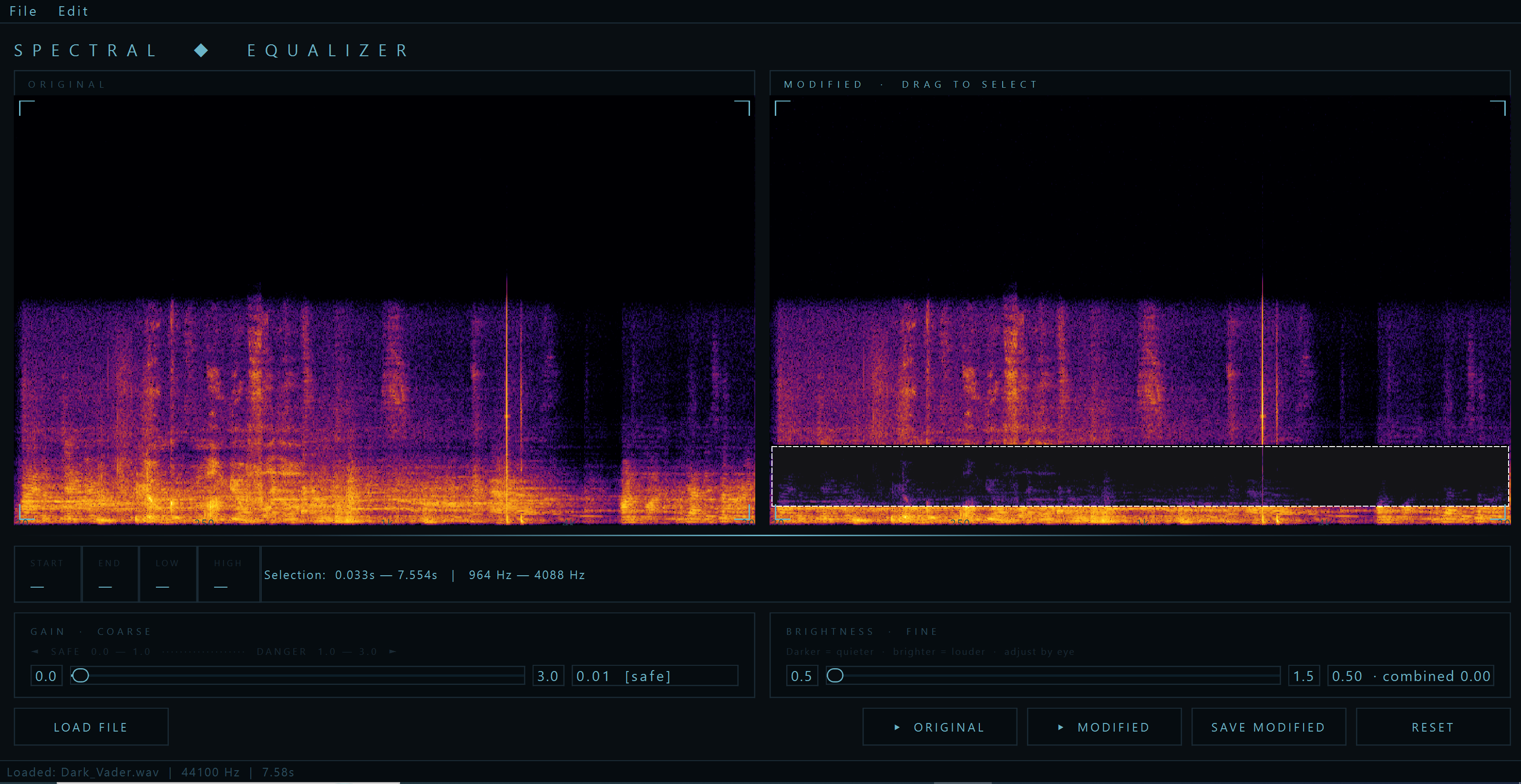
After modifying, you click Play Modified and hear the result. The original audio plays from the left button, unchanged. The comparison is immediate — listen for yourself:
Original recording:
Modified recording:
Why This Works Without Distortion
How can we modify the energy in a specific region of an audio file without introducing distortion, clicks, or artefacts?
The answer lies in a property of the Short-Time Fourier Transform.
When we apply the STFT to an audio signal, we get a matrix. Each cell in the matrix is a complex number — a number with two components. The magnitude of that complex number tells us how much energy is at that frequency at that moment. The phase tells us where in its oscillation cycle that frequency component sits at that moment.
When we apply a gain to a cell — multiplying the complex number by a real scalar — something elegant happens. The magnitude scales by that factor. But the phase is completely unchanged. By leaving phase untouched and only scaling magnitude, the reconstruction via the inverse STFT produces a signal that is perceptually smooth even at the boundaries of the edited region.
This is the same principle that professional tools like DeepFilterNet use for neural noise suppression. The network predicts a gain value per frequency bin per time frame, multiplies the complex STFT cells by those gains, and reconstructs. No phase modification. Clean output.
How It Was Built
The application is built in C++20 with Qt6, FFTW3, PortAudio, and libsndfile. Every component has a single responsibility.
AudioBuffer owns a block of audio samples in memory. It is non-copyable by design — copying large audio buffers accidentally is a bug. It uses std::span to give other modules a non-owning view of its data without transferring ownership. RAII ensures the memory is always cleaned up.
StftProcessor wraps FFTW3 — the industry-standard FFT library — in a modern C++ class. FFTW uses C-style resource management with raw pointers and manual cleanup functions. The wrapper uses std::unique_ptr with custom deleters so all FFTW resources are released automatically, even if an exception is thrown. The processor applies a Hann window to each frame before the FFT to reduce spectral leakage, and zero-pads the signal at both ends to ensure accurate reconstruction at the edges.
Equalizer applies per-band gains to the STFT matrix. The frequency bands are defined as constexpr — computed at compile time with zero runtime cost. Gains are clamped to a defined range. A gain above 1.0 enters the danger zone, marked visually in the UI.
SpectrogramWidget is the core Qt widget. It renders the STFT magnitude matrix as a colour image using the inferno palette — black through red, orange, and yellow to white — on a logarithmic frequency axis. The logarithmic axis is critical: it gives equal screen space to each octave, which matches how the ear perceives frequency differences. Mouse press, drag, and release events define the selection rectangle. The coordinate conversion from pixel position to STFT bin uses a precomputed lookup table built from the log mapping, so selection is fast and accurate even during rapid dragging.
MainWindow orchestrates the pipeline. Audio playback runs on a std::jthread — a C++20 thread that supports cooperative cancellation via std::stop_token. The main Qt thread returns immediately when you click play, keeping the UI fully responsive. The playback thread checks the stop token in its wait loop and exits cleanly when the window closes or another track starts. A std::atomic<bool> flag communicates between the Qt thread and the PortAudio callback thread without locks — locks are forbidden in real-time audio callbacks because they can block for an unpredictable duration.
The visual design follows an art deco minimalist aesthetic — near-black background, ice blue accent, geometric corner brackets on each panel, thin gradient dividers, uppercase labels with wide letter spacing. No decorative elements that do not carry information.
What Comes Next
This application is the first step in understanding DeepFilterNet, a neural network for real-time speech enhancement. DeepFilterNet does automatically what this app does manually: it looks at a noisy spectrogram and predicts the gain to apply to each frequency bin at each moment to suppress noise while preserving speech.
The next step will be a Wiener Filter.
The source code is available at github.com/Dextromethorpan/Equalizer.